Notebooks for Novices? Pros and Cons of Jupyter
tool-review, solving-errors, accessibility-and-inclusion
Introduction
Computer programming has become a core skill for many disciplines, from biology to business, as well as computer science conversion degrees that are designed for students with no prior programming experience. In many contexts, programming is used to solve domain-specific problems. Students need to learn core programming concepts, while avoiding distractions that are associated with the nuances of particular Integrated Development Environments (IDEs) or software installation issues.
The demand for accessible programming education is particularly strong in programmes that attract students from diverse backgrounds who may not have studied computer science yet need to acquire coding skills to solve practical problems in their fields. Some of these programmes include aspects of Artificial Intelligence (AI) and Machine Learning (ML), which are rapidly evolving and highly valued by industry. These degrees attract students from diverse backgrounds, who may not have studied computer science, but are eager to explore AI & ML and their applicability in their work. Most of these programmes rely heavily on the Python programming language, valued for its simplicity and extensive ecosystem of AI/ML libraries.
Jupyter Notebook has emerged as a popular tool for teaching Python for data science and AI/ML applications. A Jupyter Notebook integrates text comments, Python, and visualisation of results from running the Python segments. The visualisation includes values that are returned, as well as graphical displays of selected data. A user is able to modify a Python segment, re-run it and instantly evaluate the result, encouraging experimentation. However, beginners may be confused by hidden execution states and develop poor debugging habits.
This chapter explores Jupyter Notebook’s strengths and weaknesses as a tool to teach computer programming to novice learners, highlighting how instructors and students can leverage its benefits while addressing its limitations. Although Python serves as the primary example in this chapter, Jupyter Notebook can be used with over forty programming languages.
What Makes Jupyter Notebook Appealing To Beginners?
The choice of a development environment can determine whether programming feels approachable or intimidating, especially for students encountering it for the first time. While professional IDEs are powerful, they may include features that distract a first-time programmer. In contrast, Jupyter Notebook provides a simple user-friendly interface, together with immediate feedback. This section explores some of the practical features of Jupyter Notebook that are appealing to beginners, including IDE functionality, collaboration and visualisation, supporting its use within an educational context.
An Easy-To-Use IDE
In professional Python programming environments, a developer normally creates a virtual environment and installs packages, which is driven by command-line tools. Jupyter Notebook provides a simpler interface, allowing Python to be written directly into a cell and executed with a keystroke. An example Python segment is given in Figure 22.1, where program execution is triggered by pressing Shift+Enter and the output is given below the print command.
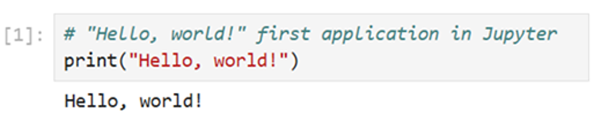
As shown in Figure 22.1, there is no need to create a virtual environment, install packages or open a command-line interface during everyday use. Once Python, Jupyter Notebook, and relevant packages have been installed, the user is presented with a simple workflow. The instant evaluation of Python code makes programming feel less abstract and more welcoming to novices.
Working With Code in Pieces
One of Jupyter Notebook’s defining features is its cell-based execution. Instead of writing and running an entire script at once, learners can break programs into smaller, manageable pieces. This modularity allows students to focus on one part of the code at a time and makes it easier to identify where errors occur.
The code in Figure 22.2 creates a list, defines a function to square all the numbers in that list, and then prints the results. Rather than placing everything in a single large cell, the program is split into three separate cells. If an error appears in one step, the student can rerun only that cell without restarting the whole Notebook.
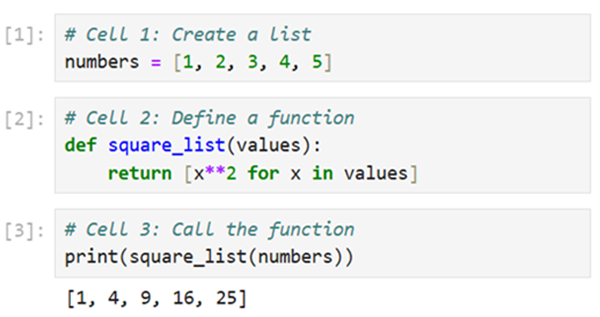
The cell-based workflow encourages experimentation, where learners modify input values, rerun a function, and immediately see how the output changes. This reduces frustration, supports trial-and-error learning, problem-solving, and generally encourages novice programmers.
Collaboration Made Simple
Programming often requires teamwork. Jupyter Notebook supports collaboration seamlessly through platforms such as Google Colab. Students can share a link to a Jupyter Notebook, allowing others to edit or comment in real time, similar to working on a shared online document. For example, a group project for an AI/ML course can happen entirely within Colab, during which:
- one student writes the data pre-processing code,
- another tests different models,
- a third documents the process using Markdown cells.
Google Colaboratory (Colab) supports the development of Jupyter Notebooks within a cloud platform, such that software does not need to be installed on a local PC. Collaboration becomes natural, and the focus remains on the problem being solved rather than on technical barriers.
Using Libraries With Ease
One of the biggest challenges for beginner computer programmers is learning how to extend a language with external libraries. When using a Python installation on a local machine, packages can be installed using the pip or conda package manager. Python pip packages are installed into the system or often into a virtual environment to prevent conflicts from arising. Python can also be installed using Anaconda, which includes the Python interpreter, together with many data analysis conda packages, and Jupyter Notebook. Due to the more comprehensive nature of the standard Anaconda installation, it is unlikely that students will have to install additional libraries, except when working with more advanced or specialised packages. For example, the NumPy library is part of the standard Anaconda installation and is also present in the cloud installation of Jupyter Notebook, such as Google Colaboratory (Colab). This implies that a student can import NumPy, as shown in Figure 22.3.
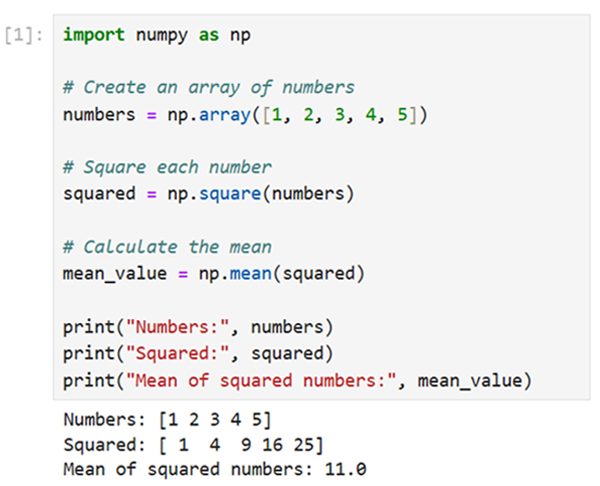
Other common libraries used for AI/ML included in Anaconda are Pandas and Matplotlib, and further libraries are also available as conda packages that can be installed separately.
Common Pitfalls and Challenges
While Jupyter Notebook has become a popular entry point into programming, especially in data science and education, it includes a variety of hidden complexities that can hinder the learning process for beginners. Its interactive design and flexibility are strengths, but they also introduce subtle challenges that may not be immediately apparent to new users. This section outlines key pitfalls that often disrupt the early coding experience and offers insight into why they occur.
Markdown vs. Misunderstanding Code Cells
Jupyter Notebook’s integration of Markdown and code cells enables rich documentation alongside executable code. However, this dual format can be confusing for beginners who are unfamiliar with Markdown syntax. When working with Notebooks that are created by instructors or collaborators, users may struggle to distinguish between instructional text and executable code, leading to misinterpretation or accidental modification of non-code cells. Students should be reminded that cell types can be changed at any time using the toolbar or keyboard shortcuts, and that Markdown cells are for text only.
Package Installation and Environment Conflicts
Installing external libraries is a common task in Jupyter Notebook, but the coexistence of multiple package managers, such as pip and conda, can confuse novice developers. Beginners may unknowingly install packages using one method while the Jupyter Notebook’s kernel is tied to another, resulting in “missing module” errors despite successful installation. These issues are not coding errors but arise due to environment mismatches that can be deeply frustrating without a clear understanding of dependency management. Students should be advised to check the active kernel’s environment and install packages consistently using the same package manager to avoid conflicts. It may be necessary to require that only one Python installation is present to prevent beginners from being confused.
Limited Debugging Capabilities
Unlike many full-featured IDEs, Jupyter Notebook provides limited tools for debugging programs. Error messages appear only in the cell where the code is executed, and there is no built-in support for features such as breakpoints (pausing execution at a specific line) or stepping through code line by line to observe how variables change. As a result, beginners often try to find errors by adding print() statements or by repeatedly modifying and re-running cells. While this can work for small examples, it becomes difficult to manage when errors involve multiple cells or more complex program logic. Novice programmers should be encouraged to use small, isolated cells for testing code, where appropriate.
Misunderstanding of the return Command
Jupyter Notebook prints values that are returned from functions. This can cause students who are learning Python using Jupyter Notebook to falsely assume that there is no difference between return and print, such that they use print within a function to try to return a value and are confused when it returns None. Tutors should explicitly demonstrate the distinction between return and print early on and encourage students to test function outputs by assigning them to variables rather than printing values inside functions.
Best Practices for using Jupyter Notebook with beginners
Based on our experience using Jupyter Notebook in teaching novice programmers, we have identified a set of practices that help maximize its benefits while avoiding common pitfalls. The following recommendations are intended to guide both instructors and students toward using Jupyter Notebook more effectively as a teaching and learning tool.
Package Installation
It is recommended to use Jupyter Notebook through Google Colab, or to install it locally either within a full Anaconda installation or using the pip package manager (where a full Anaconda installation is typically preferred). To simplify possible package conflict issues, only one version of Python should be installed on a local machine which is associated with Jupyter Notebook. Students should be explicitly instructed to either rely on preinstalled conda packages that are associated with an Anaconda installation, or use pip packages if pip has been used to install Jupyter Notebook.
Modular Construction
Similar to regular Python programs that are constructed outside of Jupyter Notebook, Notebooks should be split into different files that are associated with different steps of a data analysis process. Each Jupyter Notebook should be short enough that it can be executed rapidly from the top of the file. Students can then avoid re-executing cells and being subsequently confused by the resulting output.
If a section of Python is needed often within a Jupyter Notebook, it can be defined as a function or placed in a separate Python file and imported as a module. Defining functions or classes helps students to focus on debugging the specific logic of their program rather than repeatedly rewriting common functionality.
Debugging
Students should be introduced to different debugging approaches with Jupyter Notebook, including the print command, %whos, %debug, %pdb and the front-end debugger.
While print allows specified variable values to be printed, all variables that are within the current scope can be printed by executing %whos within a cell. This provides a user with the summary of the current kernel state, in terms of the defined variables and their values.
If a cell fails to execute, the debugger can be started by typing %debug into the following cell which launches the ipdb command prompt. This allows a user to print the value of variables that are present in the kernel memory by typing p followed by the variable name. The available ipdb commands can be listed by typing help. The debugging session can be closed by typing exit().
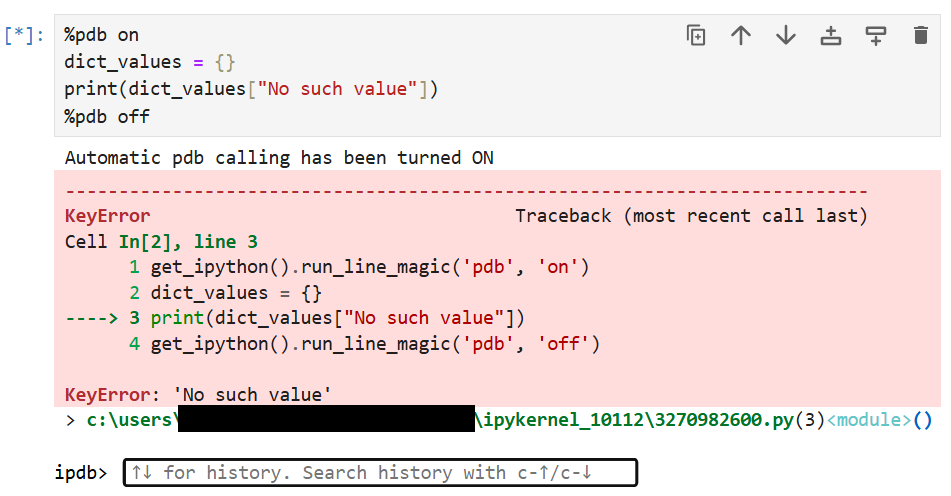
If a section of a Jupyter Notebook crashes and needs to be investigated, the debugger can be automatically launched on an execution failure by including:
before the cells under test, followed by
If the execution fails, the user will be provided with an ipdb command prompt automatically. The pdb commands are demonstrated in Figure 22.4.
More advanced debugging is accessible in Jupyter Notebook by using one of the kernels that supports the front-end debugger interface, which is documented in the JupyterLab Debugger online tutorial. Similar to Visual Studio Code and other modern IDEs, breakpoints can be added by hovering over the line number within a code block. Once the program has paused, a user can inspect the values that are contained in variables and view the callstack.
The front-end debugger is not enabled by default. When Jupyter Notebook is started, if the kernel supports debugging a grey bug icon is shown to the left of the kernel name as illustrated in Figure 22.5.

Debugging can be activated by clicking on the bug icon, which changes colour when activated. If the kernel is restarted, debugging becomes inactive again. When debugging is active, line numbers appear to the left of each line of Python code. Using the mouse to hover to the left of a line number causes a dark red circle to be displayed. Clicking on this red circle causes a breakpoint to be set for the specific line. When the code segment is run, the execution pauses at the breakpoint. The properties of values in memory can be viewed by enabling the Debugging Panel within the View menu. Paused code and associated Debugging Panel values are shown in Figure 22.6.

Markdown
Students should be encouraged to use Markdown once they have learnt enough Python to realise that Markdown is not associated with the Python programming language. To avoid confusion, students can use Python comments that are exchanged with Markdown formatted documentation later in a programming course.
Restarting the Kernel and Running Cells Sequentially
One of the most common difficulties beginners encounter in Jupyter Notebook is the confusion caused by non-linear execution. Since cells can be run in any order, variables may hold unexpected values, or code may appear to work only because of hidden state carried over from earlier runs. The Jupyter Notebook Kernel menu options can be used to address this. For example:
- “Restart Kernel and Clear Outputs of All Cells” clears the Jupyter Notebook’s memory, ensuring no hidden variables remain, and removes all cell outputs for a fresh start,
- “Restart Kernel and Run All Cells” forces the Jupyter Notebook to execute in a clean, linear order, making sure all cells run correctly with no issues.
Encouraging students to restart and rerun the Jupyter Notebook periodically helps them avoid memory-related errors, reinforces the importance of execution order, and encourages good habits for reproducible coding.
Conclusion
Jupyter Notebook has remained a dominant tool for performing data analysis and AI/ML modelling. It allows the instantaneous execution of commands, such that software developers can see the effects of implemented Python code. It is accessible within the Google Colab cloud platform and may be installed locally within Anaconda or as a pip package. It provides students with an interface that is similar to a Databricks Notebook, which is used with large data samples.
While care is needed to avoid package manager conflicts and students should be guided on execution order and debugging practices, Jupyter Notebook’s combination of code, visualisations, and text documentation offers a powerful platform for learning and experimentation. By leveraging these features thoughtfully, educators can make programming more accessible and engaging, opening the door for students from diverse fields to develop computational skills and confidence.